
CASE STUDY
How AdControl works: your first campaign, step by step
Connect an advertising account, build your campaign and follow the results. This quick guide uses the same screens you see in your workspace.
Connect an advertising account, build your campaign and follow the results. This quick guide uses the same screens you see in your workspace.
1. Connect your advertising account
Open Connections in the left menu, choose a platform and sign in to the account that manages your ads. Approve access, select the correct advertiser account when asked, then return to AdControl. A manager account is not always the advertiser account. If a platform says the account is disabled or has no access, resolve that with the platform or choose another advertiser.
2. Choose what you want to achieve
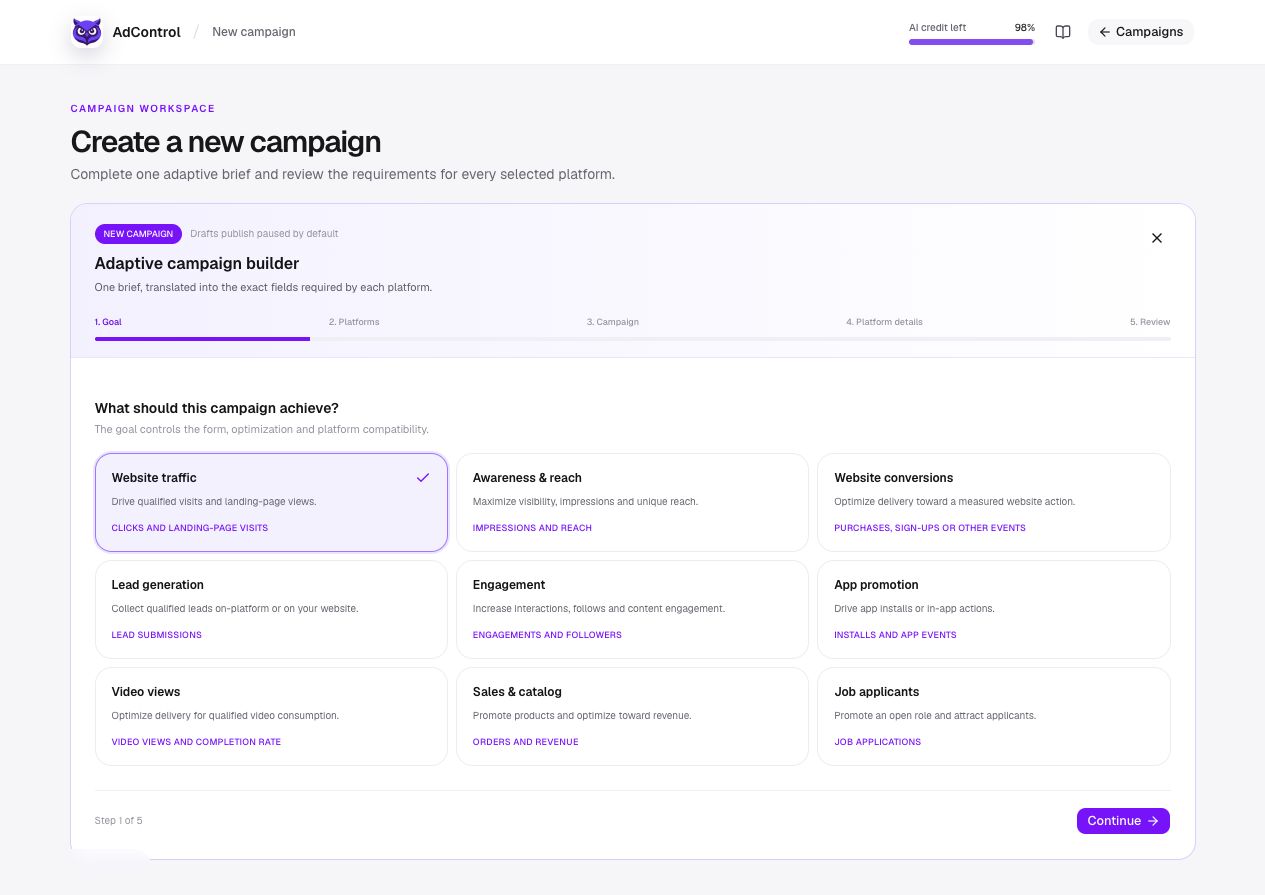
Open Campaigns → Create campaign. Choose the goal that matches your result: website visits, leads, sales, engagement or another available objective. Then press Continue.
3. Choose where to publish
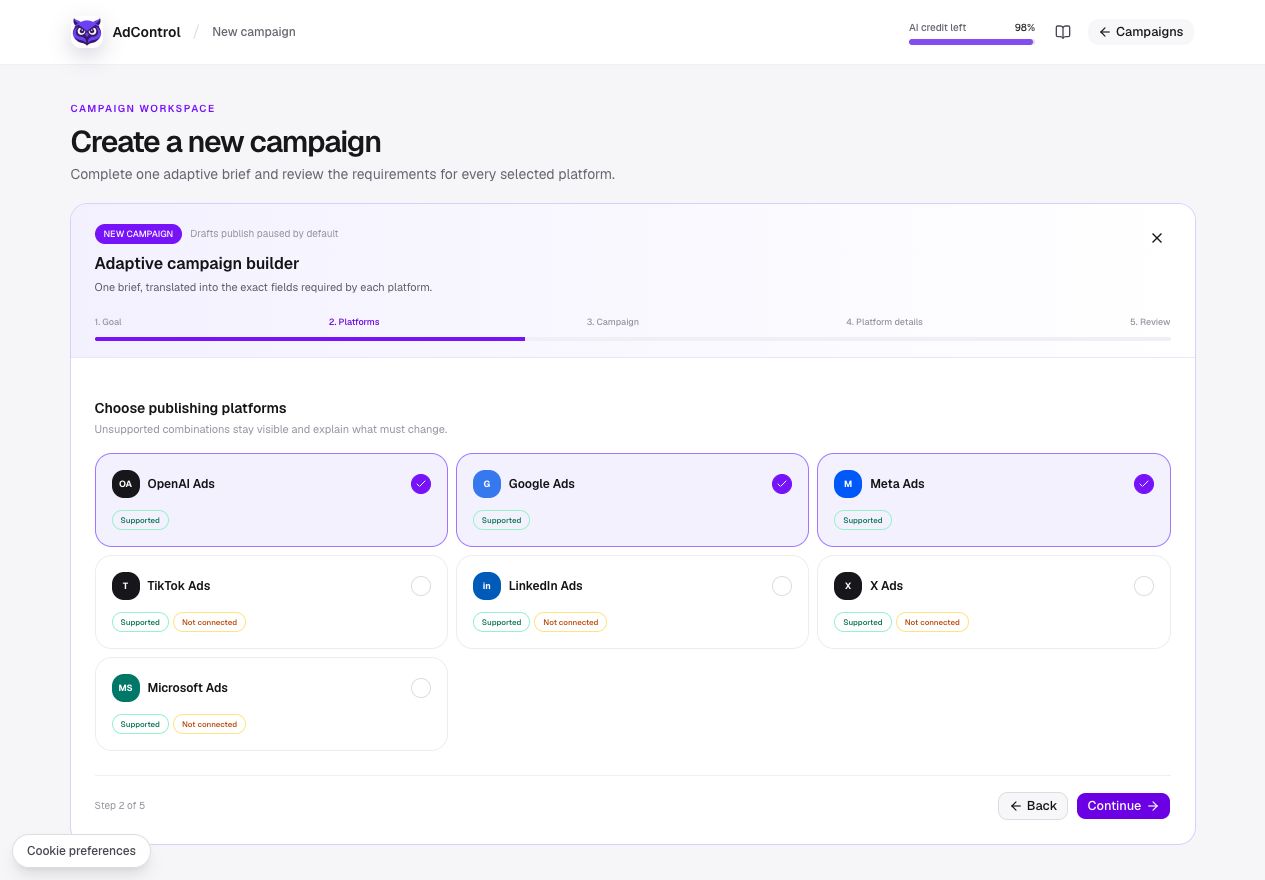
Select your connected advertising platforms and continue. Unsupported choices explain what must change; a platform marked Not connected must first be connected. Free supports one platform; Pro and AI Helper support up to five.
4. Fill in the campaign—or use AI Helper
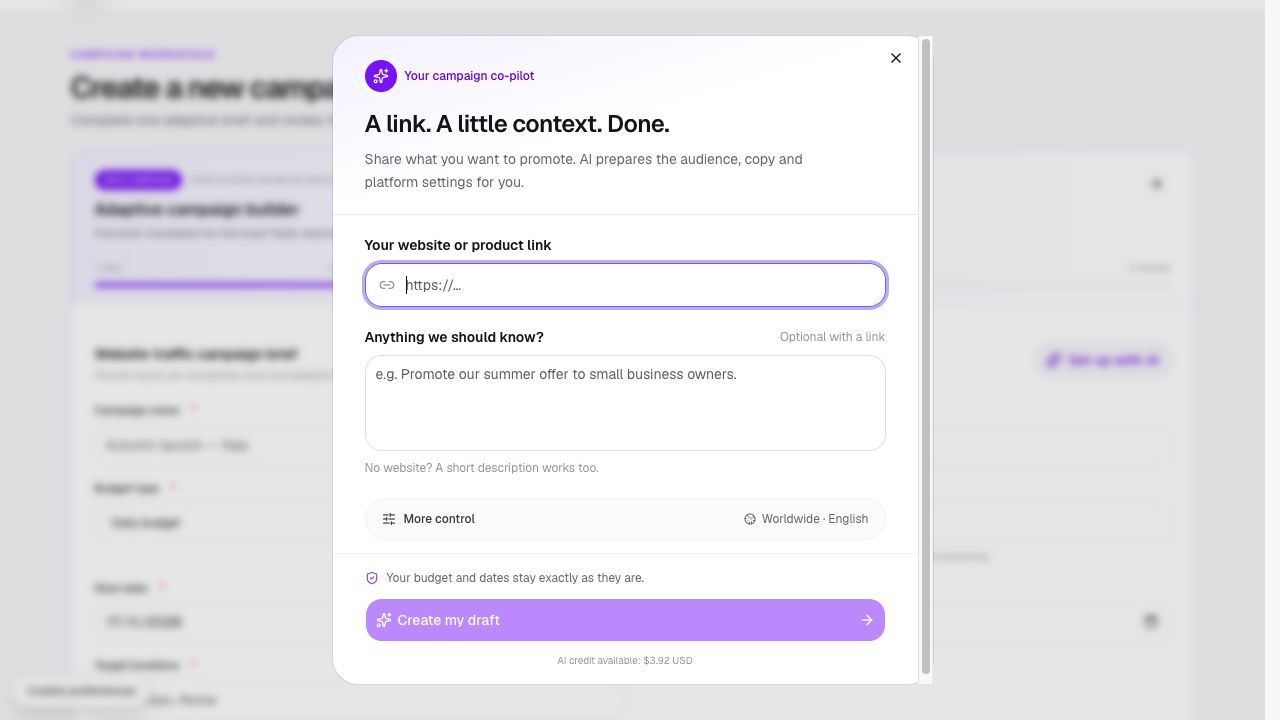
Enter your campaign name, destination, audience, budget and dates. With an active AI Helper plan, select Set up with AI: paste your website or product link and add a short note if needed. No website? Describe what you offer. Open More control to check country and language. Create my draft shows a preview; review it and apply the suggestions to your form. Your budget type, amount, start date and end date stay under your control. Choose real images and connected assets where required.
5. Review, publish and follow the results
Complete Platform details and Review. Check each platform’s requirements, links, images, budget and dates before publishing. Drafts publish paused by default; use the campaign controls when you are ready to activate them. In Overview, Synchronize data refreshes available results. Reports and Conversions help you follow performance. AI Helper also gives access to campaign analysis and recommendations. When a 30-day plan is available, its calendar shows the tasks for the day you select. Before launch, performance numbers may be empty or zero.
6. Watch your AI credit
The top bar shows AI credit left: 100% means the full allowance remains, and the bar falls as AI is used. It is a money-based allowance, not a fixed number of prompts or tokens. The starting credit is US$3.99 per user, shared across their workspaces. Requests in progress temporarily reserve credit. When there is not enough credit for another request, AI stops; ask support for a refill. Credit does not reset automatically. How it works in the same bar opens this guide.

Need a hand?
Open Help & support in your workspace. For expert campaign help, email [email protected].
Open my workspace